Ambient beds are looping tracks tied to a place. You choose the track in the Editor. You start and stop it in the GM Console. A sample in the Editor plays only in your browser. It does not start the table.
Assign a track
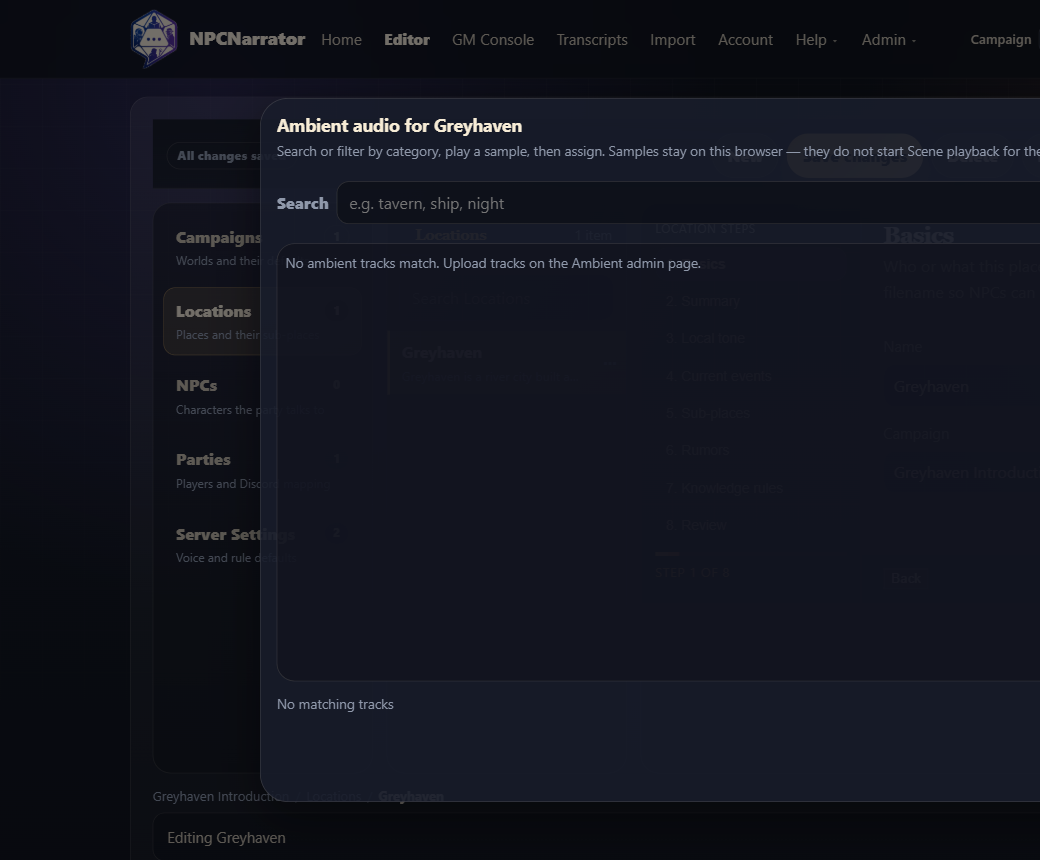
- In the Editor, open Locations and the place.
- On Basics, find Ambient audio. Click Add Audio (or the current track name to change it).
- In Ambient audio for …, Search and filter by Category. Check Music, Ambience, or both. A track can be either or both.
- Play a row to sample it. Stop ends the sample. Use attaches that track.
- Clear audio removes the assignment. Cancel closes without a change.
- Save changes on the location.
Each sub-place has the same Ambient audio control. If nothing matches, the catalog is empty for that search. Tracks are uploaded by an administrator under Admin → Ambient. GMs pick from that library. They do not upload from the Editor.
Play it at the table

- Open GM Console → Live.
- Use Manage scenes & party to set the group's Location and Known place, then Save changes. The manager closes after a successful save.
- The Ambient audio bar under the console names the track for the live place, or No ambient track, and names the scene it came from. There is no separate track picker on the console.
- Volume on that bar is how loud the bed is right now. In Scenes & party, open Ambient audio to store a volume on the group and turn on Autostart when activated if that group should start its bed when it becomes live.
- Click the round play button. It switches to pause while the track is running. Pause stops it. Play stays disabled when the place has no track. If play or pause fails, the bar shows the reason.
The bed follows the live place. Change location when the party moves, save, and play the track for the new place.