The GM Console runs one instance of the campaign in the header. Choose the campaign, open GM Console, and select an open instance (or New instance). Until you do, the console stays on Select an instance.
Prepare and Live are the two modes. Prepare is the setup wizard. Live is the session: the scene bar across the top, the transcript on the left, Checks and NPCs on the right, and ambient audio under the console. If a readiness check is still yellow, the console opens in Prepare.
Where the table hears NPCs
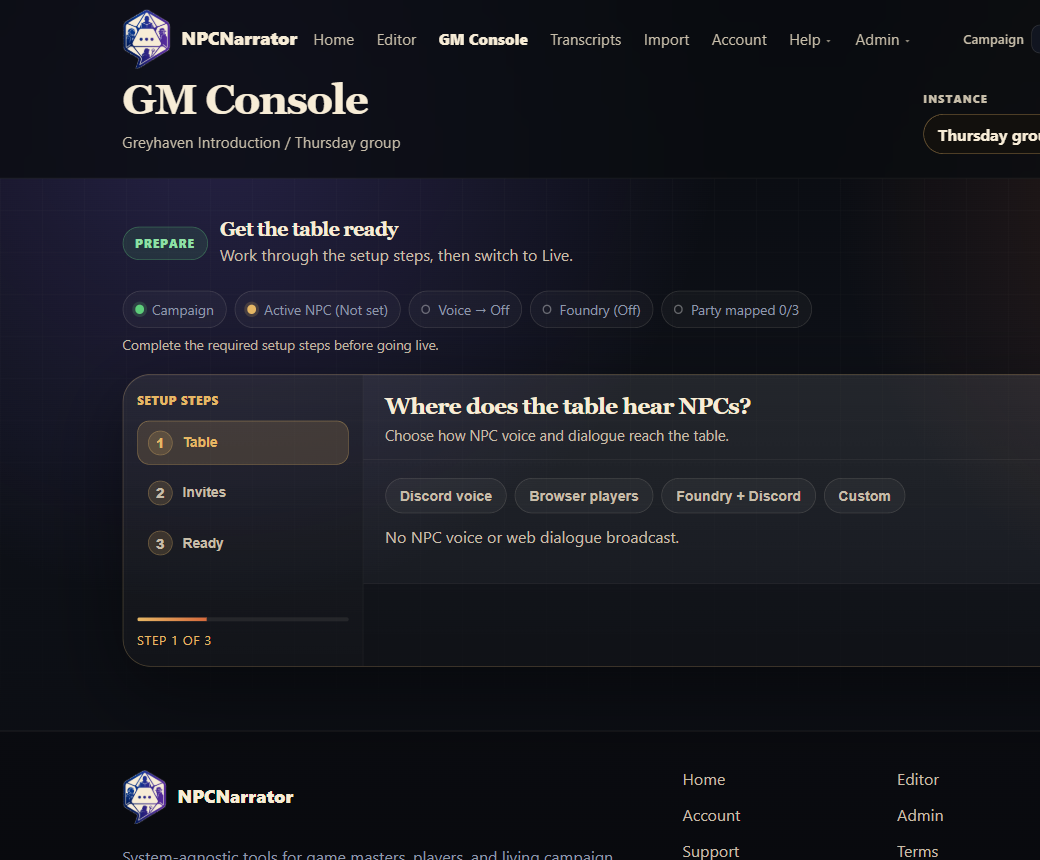
On Table, pick one preset:
- Discord voice — NPC speech plays in the bound Discord channel. Continue with Syncing to Discord.
- Browser players — players who joined with an invite hear audio in the browser. See Joining from a browser.
- Foundry + Discord — shown when VTT is on the plan. See Syncing to Foundry.
- Custom — you set audio and text yourself on the next step.
Choosing a preset saves it and moves you forward. If voice is not on the plan, the console stays text-only and says so. Upgrade on Account when you want spoken audio.
Routing
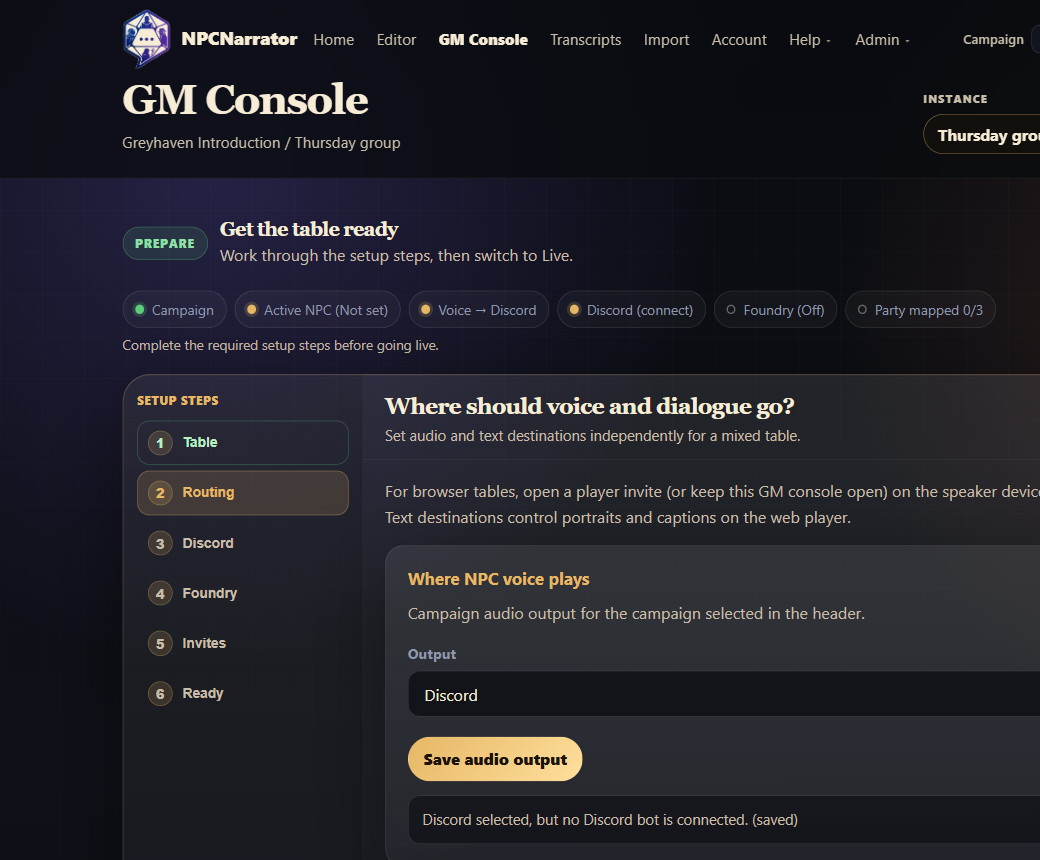
Where NPC voice plays sets Output to Off (no audio broadcast), Discord, or Specific device. A specific device is the GM console or a connected player. Save audio output stores it. Changing the dropdown also saves.
Where dialogue & portraits show (web) is separate from audio. Connected Discord and Foundry bridges always receive captions. The web choices are:
- Off (no pictures or text on web)
- All devices (GM + players; players get portraits)
- GM only (transcript on GM; players see nothing)
- Players only (players get text + portraits)
Click Save text output after you change it.
Invites and ready
Invites creates a join code for this instance. Details are in Joining from a browser. For a Discord-only table the step can be skipped.
Ready is the last Prepare step:
- Active NPC — choose an NPC and click Set active NPC. This is who answers until you change it.
- Who's who — party characters and Discord mapping. Open Editor → Parties fixes the roster. Who is in the live scene is set with Manage scenes & party.
- At the table now — Discord, Foundry, the GM, and browser players that are connected.
Click Go to Live session or the Live tab.
Live session
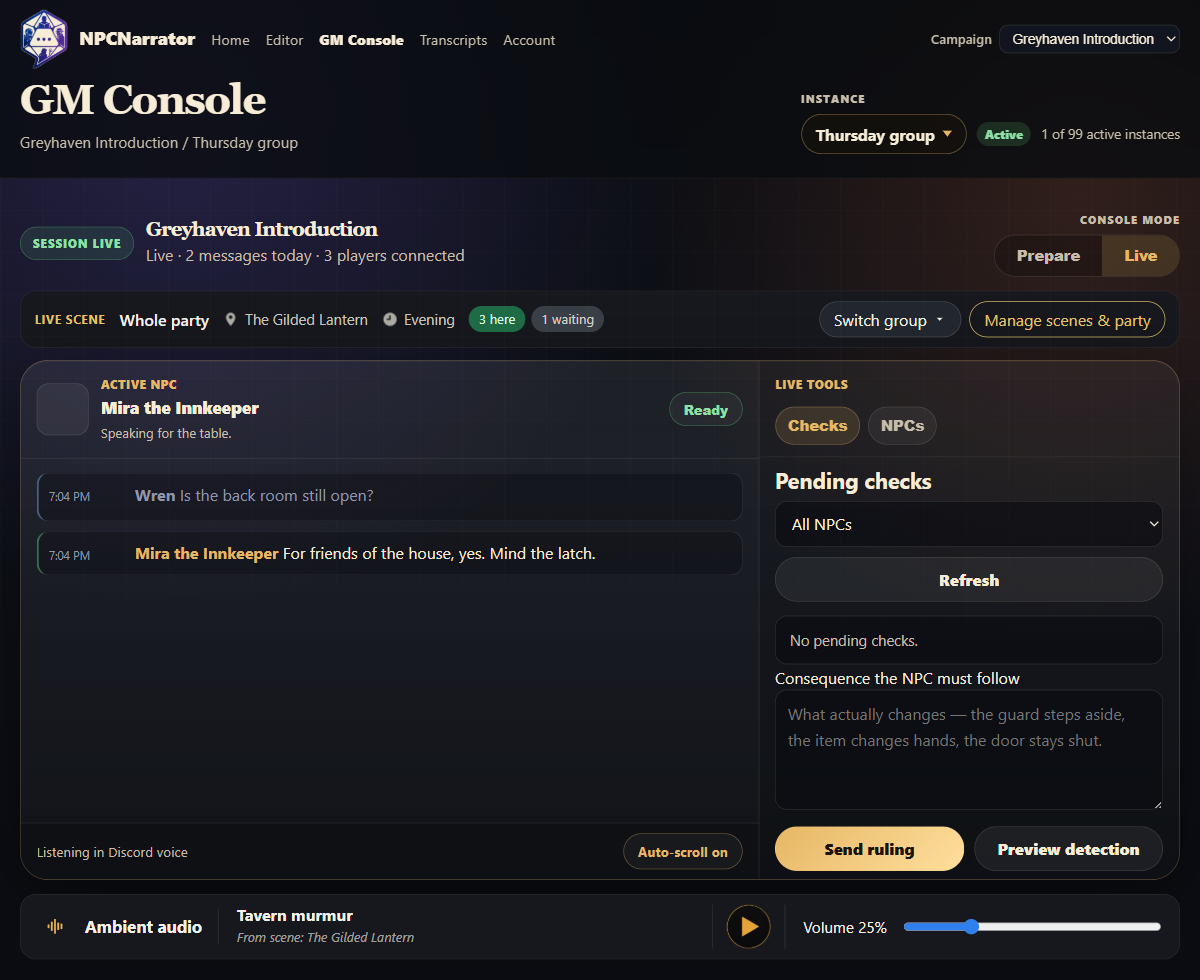
Session live sits beside Prepare and Live. It names the campaign and how the session is going. Under that, the Live scene bar names the group that is live, its place and time, and how many characters are here or waiting. Before any group exists it reads Whole Party, place and time stay Unset, and Switch group stays off.
Switch the live group
Switch group opens Activate a group. Each row shows the group name, Live or Waiting, the place and time, and who is in it. A waiting row says how many players it would activate and how many players currently here it would pause. Click Activate. That group becomes the live scene immediately. The live row is marked and has no Activate button.
Activating a group with no characters asks you to confirm. Everyone waits until someone is in the live scene.
Scenes and party
Manage scenes & party opens Scenes & party. The Party menu chooses which group you are editing. A Live badge marks the group that is actually live. The note under the menu says activation is separate: editing a waiting group leaves the live group live, and saving the live group updates the live scene.
Set Location, Known place, and Time. Use a custom place opens a free-text place. Under Players, Present is a temporary Here / Away mark. Uncheck it to send that character away without moving them to another group.
Ambient audio in the manager names the track for the selected place. Open it to set the volume stored with that group and Autostart when activated. Autostart starts that group's bed when the group becomes live.
Save changes writes the group and closes the manager. If you switch groups or close with unsaved edits, Save scene changes? offers Stay, Discard, and Save.
Edit group and split the party
Edit group renames the group and moves players with the Group menu, including Unassigned. Save group writes those assignments. It does not activate a different group. Moving the last player out of a group removes that group when another group still has players. When everyone is together in one group again, that group is named Whole party.
Split party makes a waiting group from the players you check. Name it, then Create group. The new group copies the current place, time, and ambient settings, and it starts waiting. The live group stays live. The summary names who stays and who moves.
Characters who are away, waiting in another group, or unassigned miss lines spoken while they are gone. On their player page a card covers the stage in front of Speak: Waiting for your scene and Your character is off scene. Speak and Type Message stay paused. Mark them Here, activate their group, or add them to the live scene to bring them back. See Joining from a browser.
The transcript follows the table. Auto-scroll can be turned off. The footer names where audio is going, such as Listening in Discord voice or Audio output off. A chip such as Ready or N to fix jumps back to Prepare.
Ambient audio
The bar under the console is labeled Ambient audio. It names the track for the live place, or No ambient track, and says which scene it came from. The round button plays or pauses that track. Volume on the bar is how loud the bed is right now. Play stays off when the place has no track. If play or pause fails, the reason appears on the bar. Assign the track in the Editor. See Finding and playing ambient music.
Checks
Pending checks lists claims waiting on you. Confirm success, Deny, or Ignore each one. Filter with All NPCs or one NPC. Refresh reloads the list. The list also polls while this tab is open.
Consequence the NPC must follow plus Send ruling posts a freeform instruction the NPC then obeys. Preview detection shows how a line would be classified, without sending it. Recent rulings is the log.
NPCs
The list is every NPC in the campaign. Set active switches who is talking. Speak as opens a dialog: paste Speech text and click Speak as NPC. That line is spoken as written. It is not a new model reply. You need an active NPC first.
Clear stored knowledge wipes memories, history, or decisions for one NPC or every NPC. It does not delete NPC definitions, voices, or portraits. Type delete to confirm. This cannot be undone.