Browser players join one instance with a code. They do not need an NPCNarrator account. Audio and on-screen text still follow the routing you set in the GM Console.
GM: create an invite
- Open the instance you are running tonight.
- Go to Prepare → Invites. For a Discord-only table this step is optional. For browser players it is required.
- Optional: set Label (for example Friday night group) and Expires in (days). The default is 7.
- Click Create invite.
The list Join codes for this instance shows the code, campaign, expiry, and Status: Active or Inactive. Copy the join URL or let players scan Scan to join on the latest active code. Revoke turns a code off. A revoked or expired code cannot be used.
On Table, choose Browser players (or Custom and set Output to Specific device) if those players should hear NPC voice in the browser. Under Where dialogue & portraits show (web), pick a mode that includes players if they should see text and portraits. GM only leaves their screen without dialogue.
Player: join and talk
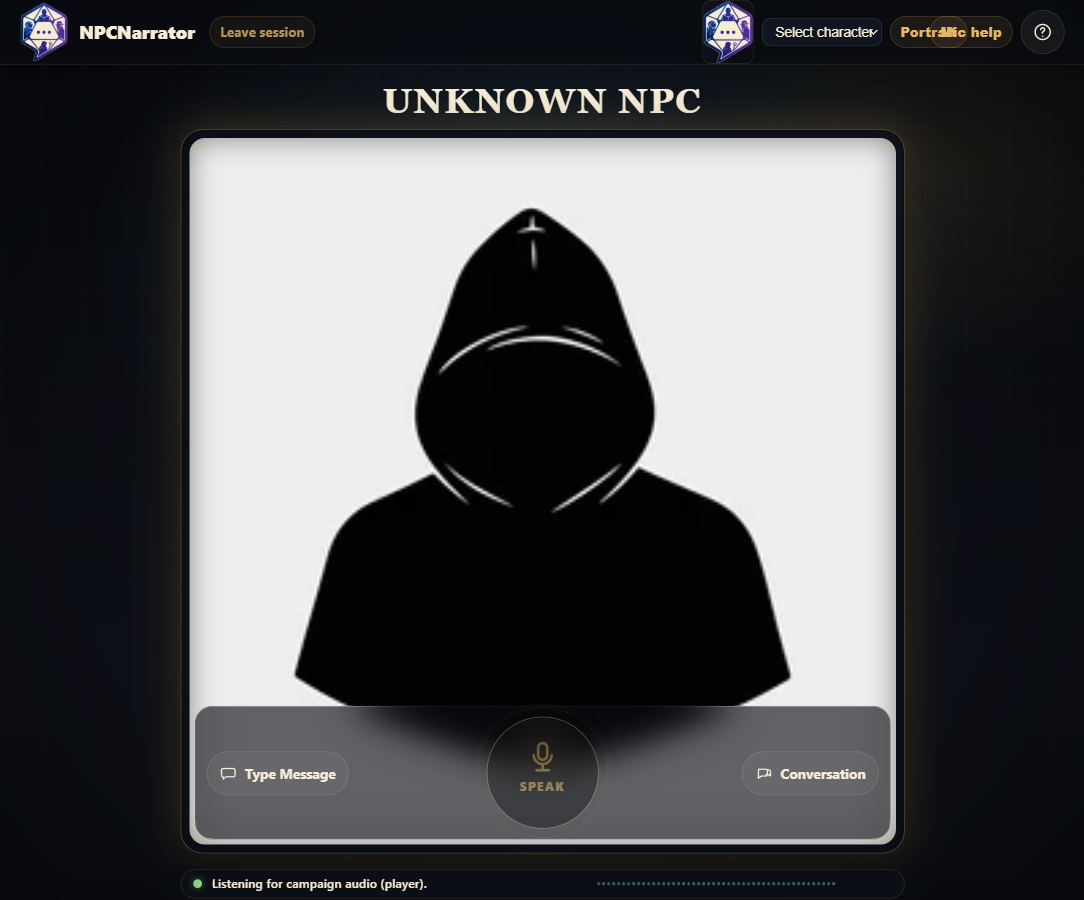
- Open Join Campaign (the public play page, or the invite link).
- Enter the Invite Code and click Join Campaign.
- On the player page, set Playing as to your character. Speak and type stay disabled until a character is selected.
- Click Mic help if you need to choose an input or run a microphone test.
- Tap Speak and talk. Hold Speak while you talk, then stop, and choose Send or Redo.
- Type Message sends a written line instead. Conversation shows the history, filtered by NPC or All NPCs.
The large name is the NPC the GM has set active. A talking portrait appears while that NPC speaks when one is assigned in the Editor. Leave the microphone available through the NPC’s reply so the next take is not silent.
If the character is marked Away, waiting in another group, or not in a group, a card covers the page in front of Speak. It reads Waiting for your scene and Your character is off scene, and it names the group (or Unassigned). Speak and Type Message stay paused. Marked Away, the card says they return when the GM marks them Here. Waiting or unassigned, it says access returns when the GM activates their scene or adds them to the current scene.
When the player is connected, At the table now on the GM Console lists them as a player device. You can route Specific device audio to that browser.