Voices and portraits are set on an NPC in the Editor. Samples stay in your browser. Playing one does not spend campaign messages. Voice output at the table still depends on your plan. If voice is not included, the Editor says so and points you to Account.
Cast a voice
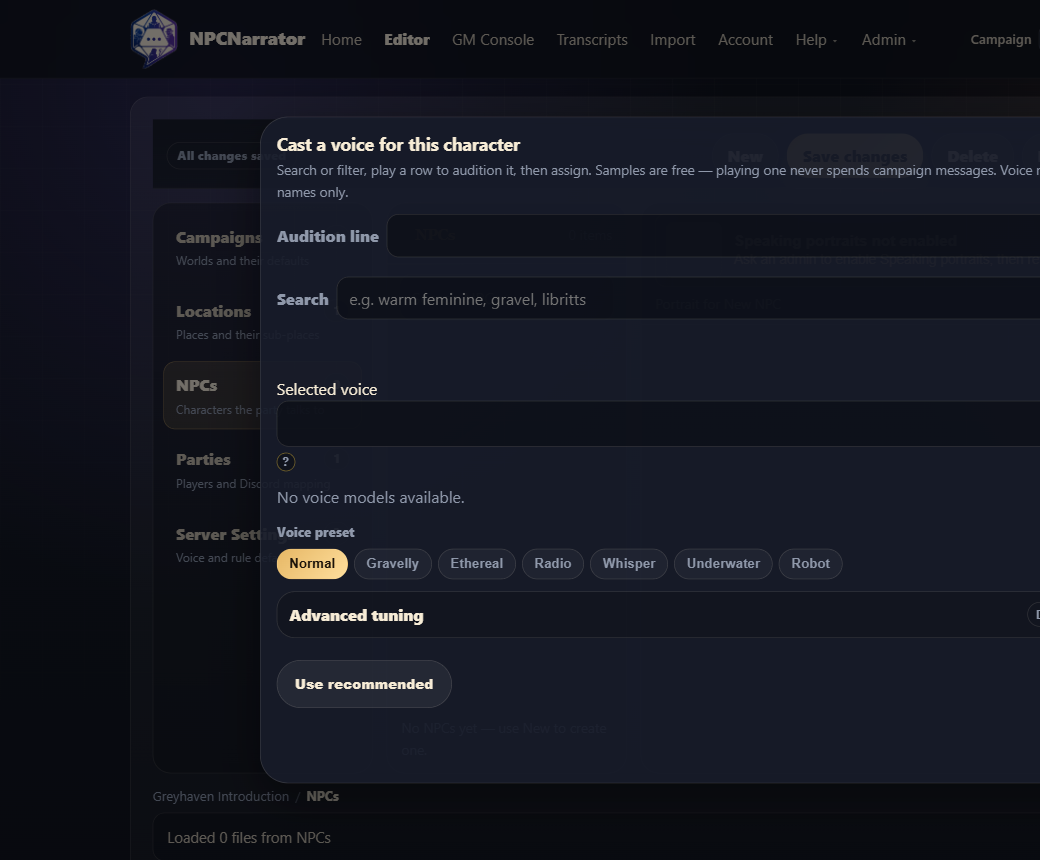
- Open the NPC. On the Spoken voice step, or on the voice bar How this character sounds, click Change voice.
- In Cast a voice, set an Audition line if you want to hear a specific sentence.
- Search the catalog. Preview or the row play control speaks a sample. Stop cuts it off.
- Optional: pick a Voice preset or open Advanced tuning (Length, Noise, Cadence, Pitch, FX, Denoise, Noise floor). Use recommended restores the suggested settings.
- Click Assign voice, then Save changes on the NPC. Assigning updates the draft. Save writes it.
The same dialog sets the narrator. Open Server Settings, select tts.yaml, and use Change voice there. Save that file too.
Speaking portraits
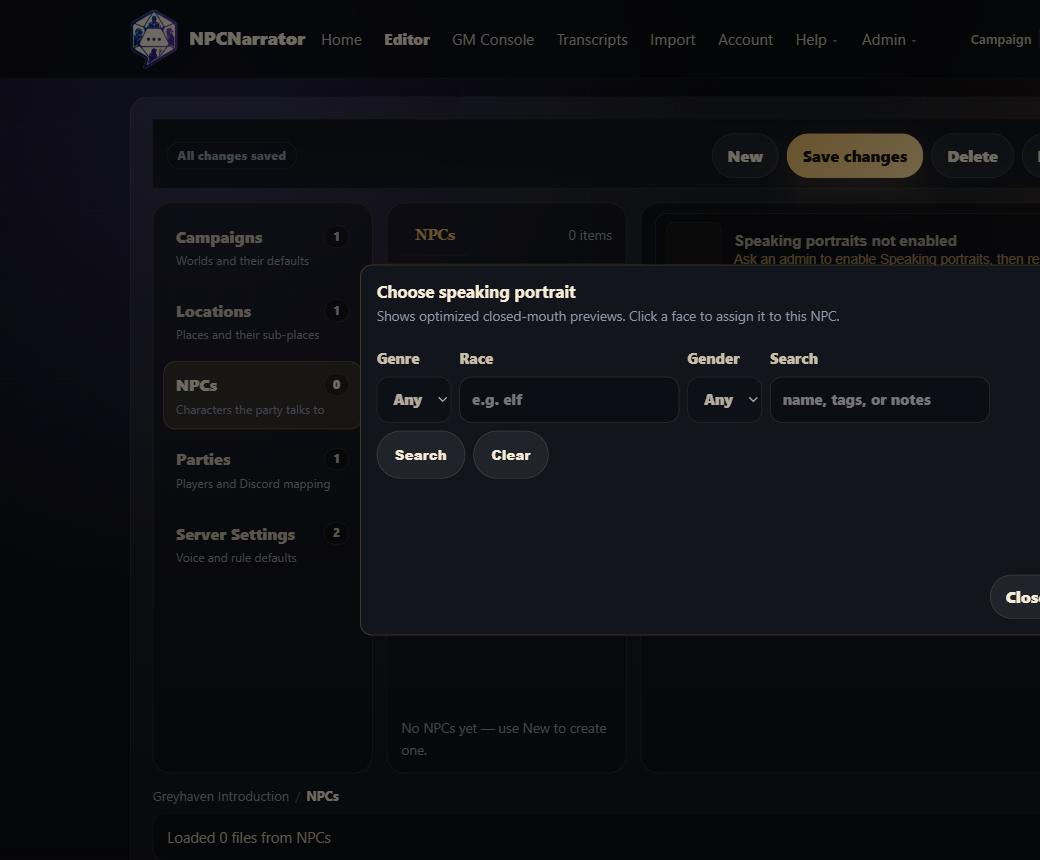
On an open NPC, the portrait control shows No portrait assigned or the catalog name. Open Choose speaking portrait, filter by Genre, Race, and Gender, search, and pick one. Previews are the closed-mouth still. Clear removes the assignment. Close leaves the dialog.
If the plan does not include portraits, the control says Speaking portraits not enabled. Ask the account owner to turn the feature on, or contact support, then reload.
Portrait choice is stored when you pick it. You still save the NPC for the rest of the character. In Foundry, Sync Narrator portrait copies that closed-mouth still onto the actor. See Syncing to Foundry.