Import appears in the header when document import is on your plan. If you do not see it, open Account or contact support. A file upload always creates a new campaign. Merging into a campaign you already have is only offered when the job came from a Foundry world import.
Upload
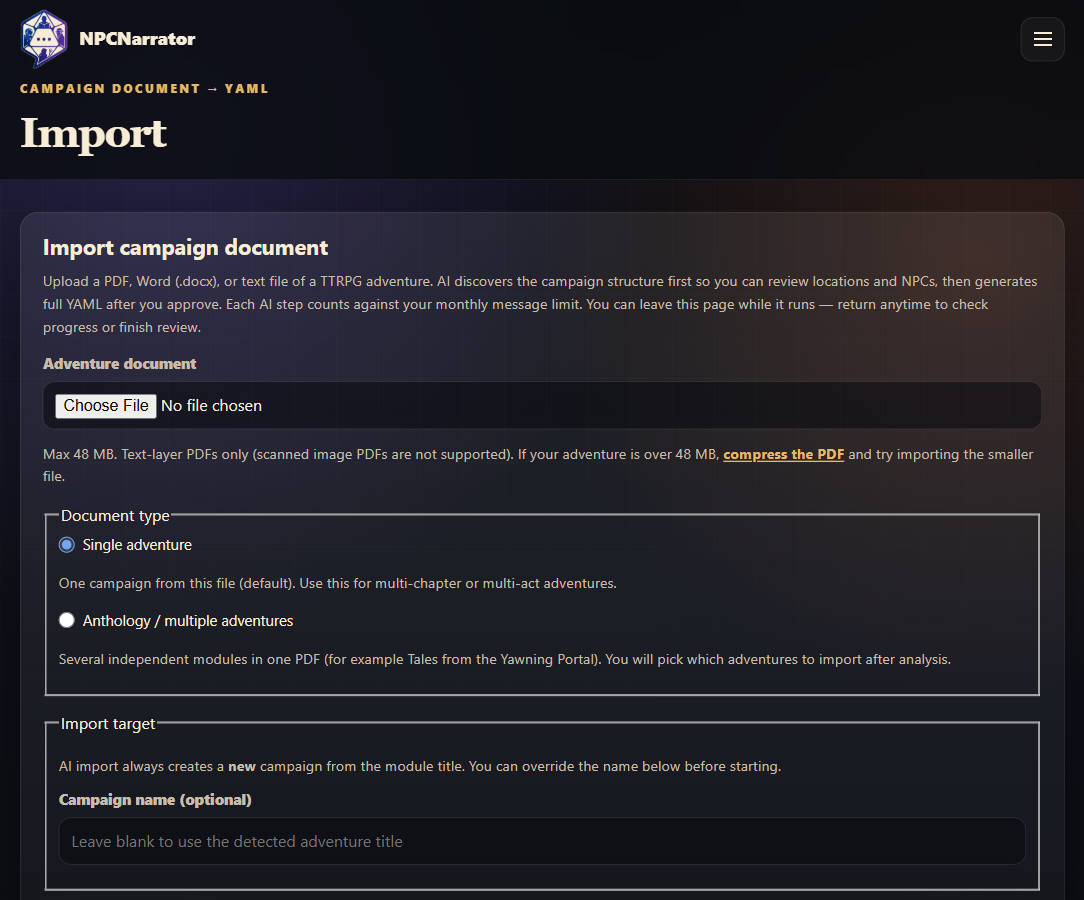
- Open Import.
- Choose an Adventure document: PDF, Word (.docx), plain text, or Markdown. The limit is 48 MB. PDFs need a text layer. A scan of pages is not read.
- Set Document type to a single adventure, or Anthology / multiple adventures when the file holds more than one.
- Optional: type a Campaign name.
- Click Analyze document.
Progress walks through upload, discovery, and generation. Cancel import stops a job that is still running. Leave the page and come back. The same browser resumes the job that is in progress.
Review and generate
On Review discovered content, check the adventures, locations, and NPCs to keep. All and None toggle a list. Then click Generate campaign (or Generate N campaigns for an anthology). If you are out of campaign slots, the button reads No campaign slots left.
A Foundry import that targets an existing world shows Merge into campaign here instead. Start that job from Foundry module settings, Import world. See Syncing to Foundry.
After the file is saved
When YAML is saved, Finish casting before you run the table reminds you to review NPCs, add portraits, and assign voices. Open NPCs in Editor goes straight there. I'll do this later closes the reminder. Imported characters do not have voices or portraits until you cast them. See Voices and speaking portraits.